
Library Search Result Highlighting: See Why Your Search Results Matched
Please note: this feature is exclusive to ReadCube Enterprise.
When you search your library, you want to know more than just which papers matched. You want to know why. Search Result Highlighting shows you exactly where your search terms appear in each result, so you can judge relevance at a glance instead of opening papers one by one.
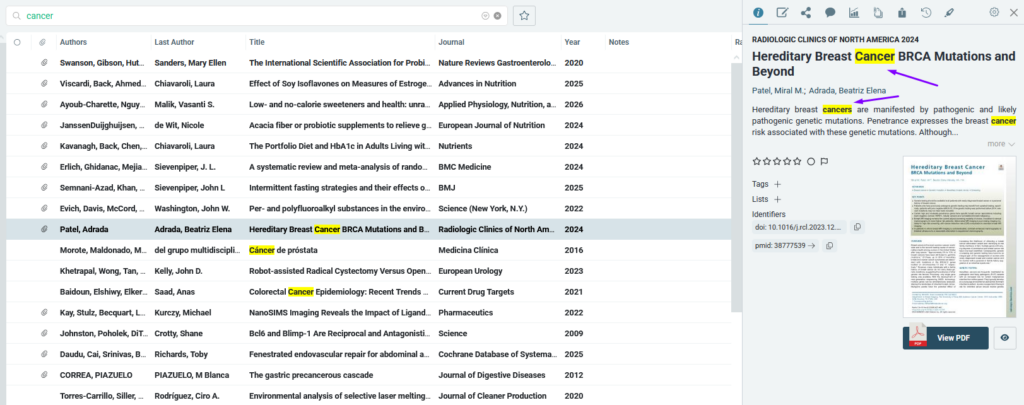
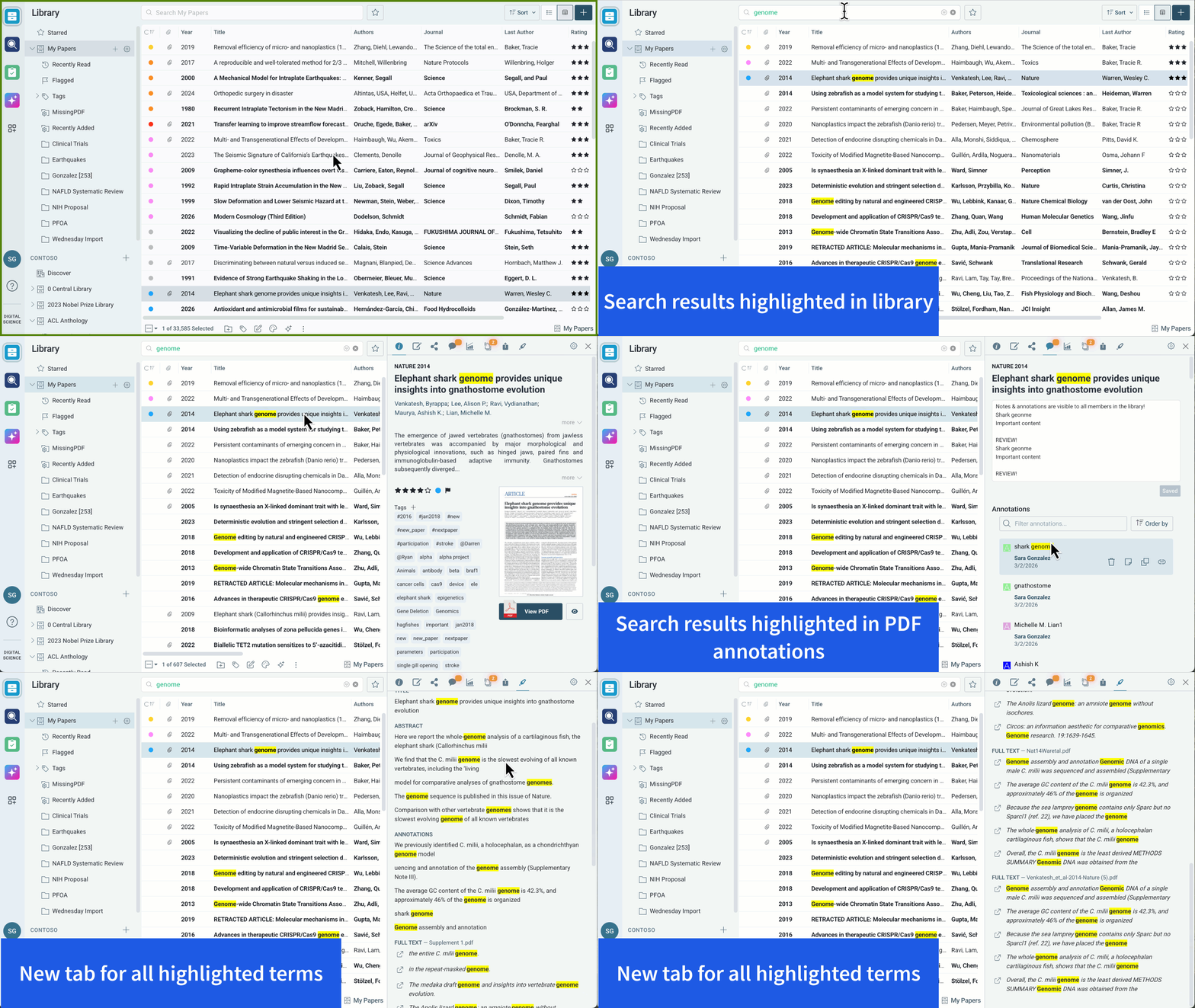
After you run a library search (regular or advanced), your search terms are highlighted everywhere they appear: in titles, authors, journals, abstracts, your notes, your annotations, and even inside the full text of your PDFs.
Where you’ll see highlights
In your library list
Matches are highlighted directly in the columns of your library view, so you can scan results quickly. 
In the item details panel
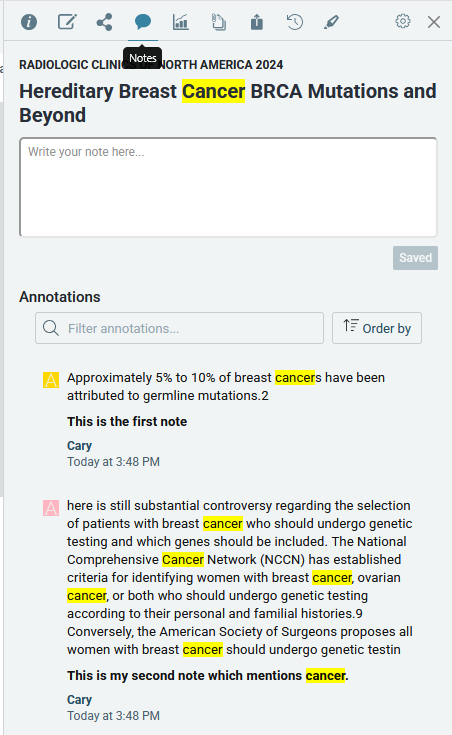
Select any result and you’ll see your search terms highlighted in the Details tab (title, abstract, authors), the Edit tab (journal), and the Notes tab (your notes and annotations).
In the new Highlights tab
The side panel now includes a Highlights tab that brings every match for the selected paper together in one place: authors, title, abstract, journal, notes, annotation highlights, annotation notes, and full-text matches.
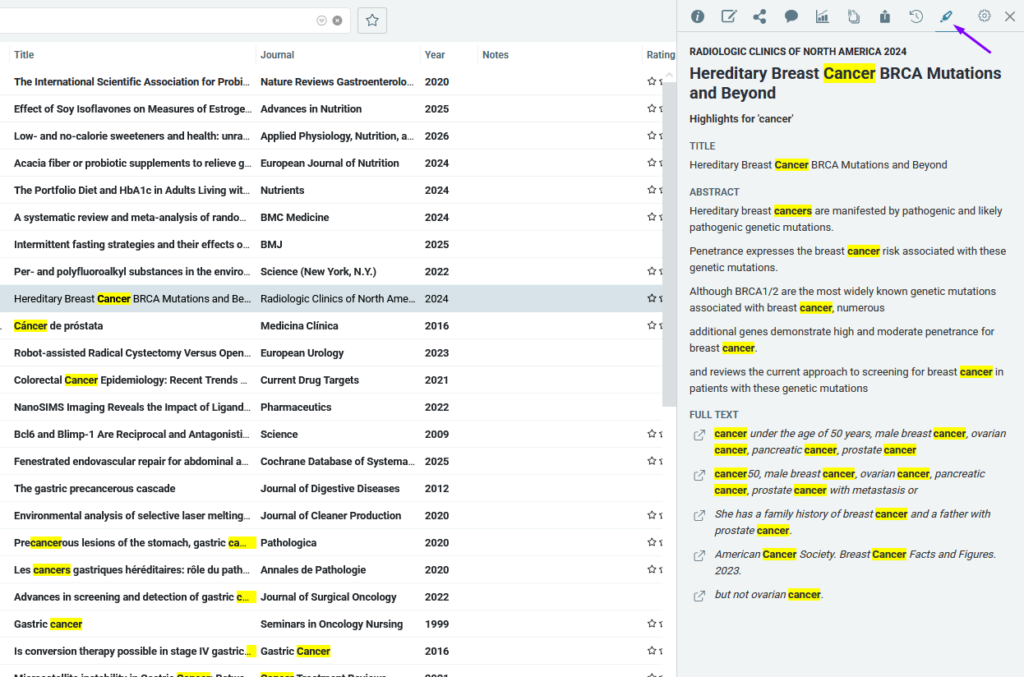
The Highlights tab appears whenever a search is active.
Turning it on and off
For yourself: If you prefer a cleaner view, you can switch highlighting off (and back on) anytime in your personal settings. Go to your account settings and toggle Library search result highlighting. It’s on by default.
For your organization: Admins can control the feature for the entire organization by reaching out to the ReadCube Support team.


